
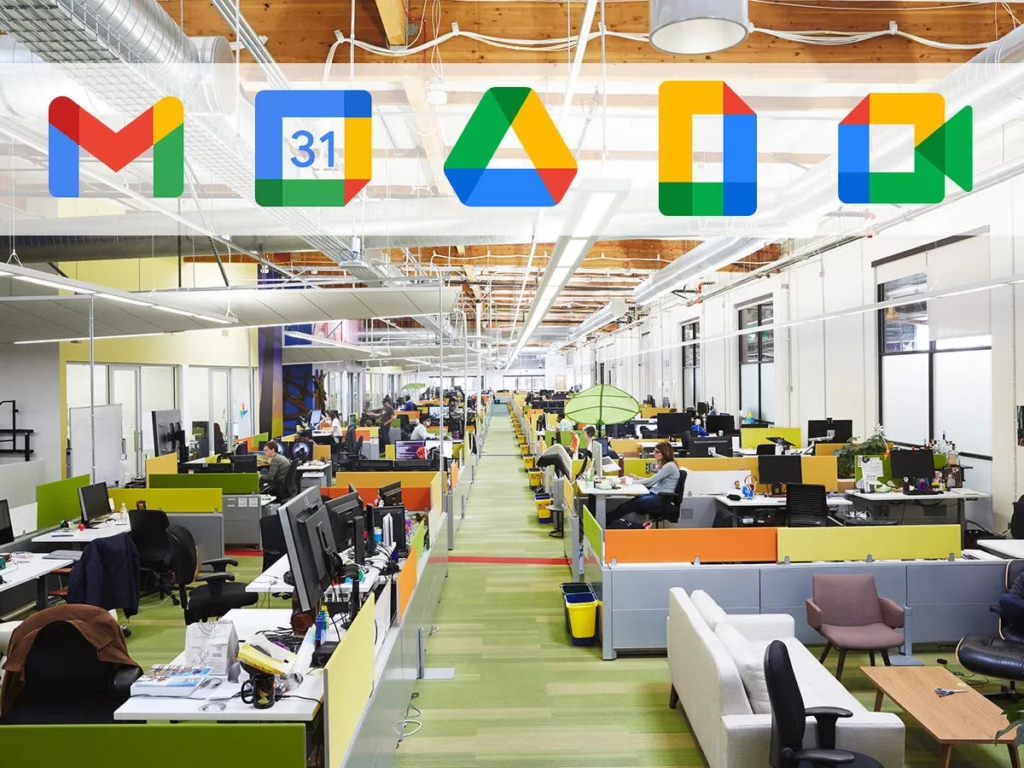
In today’s fast-moving work environment, team collaboration isn’t just about sharing documents—it’s about building a connected digital hub where communication, scheduling, and project execution happen seamlessly. For small businesses and growing teams, leveraging Google Workspace for team collaboration eliminates operational silos and reduces daily email clutter. Here is your practical guide to structuring Google Chat, shared calendars, and communication best practices for maximum alignment.
1. How to Use Google Workspace for Team Collaboration Across Workflows
The real strength of Google Workspace lies in its interconnected ecosystem. Instead of jumping across disconnected third-party apps, your team can manage real-time co-authoring, task delegation, and feedback within a single browser window.
- Co-Authoring in Real Time: Use Google Docs, Sheets, and Slides for synchronous brainstorming and execution. Multiple team members can work inside the exact same file without version-control issues.
- Actionable Task Assignment: Type
@inside any document or sheet to tag a colleague. Check the “Assign to…” box to officially delegate responsibility. This automatically sends an email notification and adds the item to their task queue. - Version History Auditing: Track every single edit, restore previous drafts, and see who made specific updates by opening
File > Version history.
2. How to Use Google Chat for Internal Communication
Email is great for formal announcements and external client exchanges, but internal operations demand faster momentum. Learning how to structure Google Chat ensures your team gets quick answers without losing track of important decisions.
- Create Dedicated Spaces: Use Spaces in Google Chat to organize conversations by department (e.g.,
#marketing,#finance) or project (e.g.,#q3-product-launch). - Use In-Line Threading: Keep conversations organized by replying directly within message threads. This prevents main chat rooms from being flooded with side discussions.
- Integrate Drive Files Directly: Drop Google Drive links directly into Chat rooms to automatically grant viewing or editing permissions to all space members.
3. Managing Shared Calendars in Google Workspace
Time management is a critical component of Google Workspace for team collaboration. Without shared visibility, scheduling simple meetings can turn into an endless back-and-forth email thread.
How to Set Up and Optimize Shared Calendars:
- Create Team-Specific Calendars: Set up secondary shared calendars for specific uses like “Company Holidays,” “Product Launches,” or “Out of Office.”
- Overlay Schedules: Add your teammates’ calendars to your primary view under “Other calendars” to instantly spot open time slots across the team.
- Utilize Appointment Schedules: For client bookings or internal 1-on-1s, set up shareable booking pages to let others reserve dedicated time slots on your calendar automatically.
Collaboration Tip: When scheduling a group meeting in Google Calendar, use the “Find a time” tab. Google will automatically analyze everyone’s availability and highlight the best overlapping window.
4. Best Communication Practices for Small Teams
Having access to modern tools is only half the battle; establishing clear behavioral rules ensures your team stays productive without feeling overwhelmed by constant notifications.
| Communication Goal | Recommended Tool | Channel Best Practice |
| Quick syncs & updates | Google Chat | Keep it brief; use threaded replies to preserve context. |
| Complex problem solving | Google Meet | Include an agenda in the invite; save live call transcriptions to Drive. |
| Documentation & decisions | Google Docs / Drive | Record final decisions in a shared doc rather than letting them disappear in chat logs. |
| Formal & external communication | Gmail | Use for external vendors, formal contracts, and official client correspondence. |
- Respect Working Hours: Set your working hours and location in Google Calendar so colleagues know when you are available or working remotely.
- Set Custom Statuses: Update your Google Chat status (e.g., “In deep work until 2 PM” or “In a client meeting”) to set clear expectations around response times.
Unlocking Seamless Productivity Using Google Workspace for Team Collaboration
Mastering Google Workspace for team collaboration comes down to using the right tool for the right job. By organizing Google Chat spaces, maintaining transparent shared calendars, and setting clear team communication rules, your small business can run with the clarity and speed of a much larger enterprise.
Want to know why you should use Google Workspace as part of your small business team workflow? Check out our previous article for more information.
Further Reading: Please check out this guide on Google Drive & Docs collaboration.