

As a small business grows, its digital footprint expands exponentially. Without a deliberate strategy, your team’s cloud storage can quickly turn into a maze of misplaced files, duplicate documents, and broken sharing links. Learning how to organize Google Drive for small business operations isn’t just about tidying up—it’s about protecting company IP, saving team hours, and ensuring seamless collaboration. Here is how to create a scalable file ecosystem, starting with foundational organization rules and moving into the ideal folder structure for growing teams.
Part 1: Core Rules to Organize Google Drive for Small Business
Before setting up your folder architecture, establish universal rules for how files are created and stored.
1. Shift from “My Drive” to “Shared Drives”
The biggest mistake small businesses make is storing operational files inside personal “My Drive” folders. When an employee leaves the company, accounts are deactivated, and critical files stored in “My Drive” can disappear or become inaccessible.
- The Rule: Individual “My Drive” spaces should only be used for scratchpad notes or personal drafts. All active business documents must live in a centralized Shared Drive, where the company retains ownership of the files regardless of team member turnover.
2. Establish Standard Naming Conventions
Search functionality is only as good as the file names you input. Implement a mandatory naming syntax across all departments:
$$\text{[Department/Client]} – \text{[Document Type]} – \text{[YYYYMMDD]}$$
- Example:
Marketing_Proposal_20260905instead ofProposal_final_v2
3. Enforce the Three-Level Depth Rule
Avoid creating deeply nested, endless subfolders. If a team member has to click through seven subfolders to find a routine template, the structure is too complex. Aim to keep your folder hierarchy to three levels deep at most.
Part 2: Best Google Drive Folder Structure for Teams
With foundational rules in place, you need an intuitive, top-down structure that accommodates company growth without creating clutter.
The most effective blueprint uses a Departmental & Functional Shared Drive Architecture. Below is a battle-tested folder model designed for small teams:
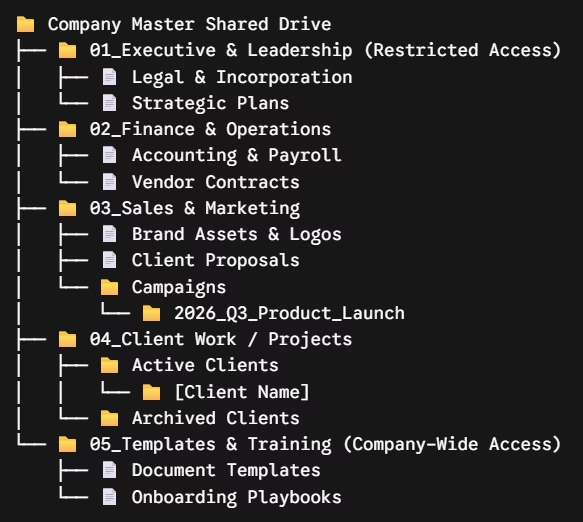
Permission Management Across the Structure
Structuring folders is only half the battle; managing access guarantees that sensitive data remains safe. Apply role-based permissions at the top folder level:
| Folder Level | Access Group | Permission Level |
| 01_Executive | Founders, C-Suite | Manager (Full Control) |
| 02_Finance | Ops Lead, Accountant | Content Manager (Edit & Delete) |
| 03_Marketing | Sales & Marketing Teams | Contributor (Add & Edit Files) |
| 05_Templates | All Employees | Viewer / Commenter (Prevents Overwriting) |
Final Thoughts
Taking the time to organize Google Drive for small business workflows saves hundreds of hours of lost productivity down the line. By moving core operations into Shared Drives, enforcing uniform naming conventions, and sticking to a clean, departmental folder structure, you ensure your team spends less time searching for files and more time driving results. We recommend checking out our previous post on Google Workspace Best Practices for Business.