
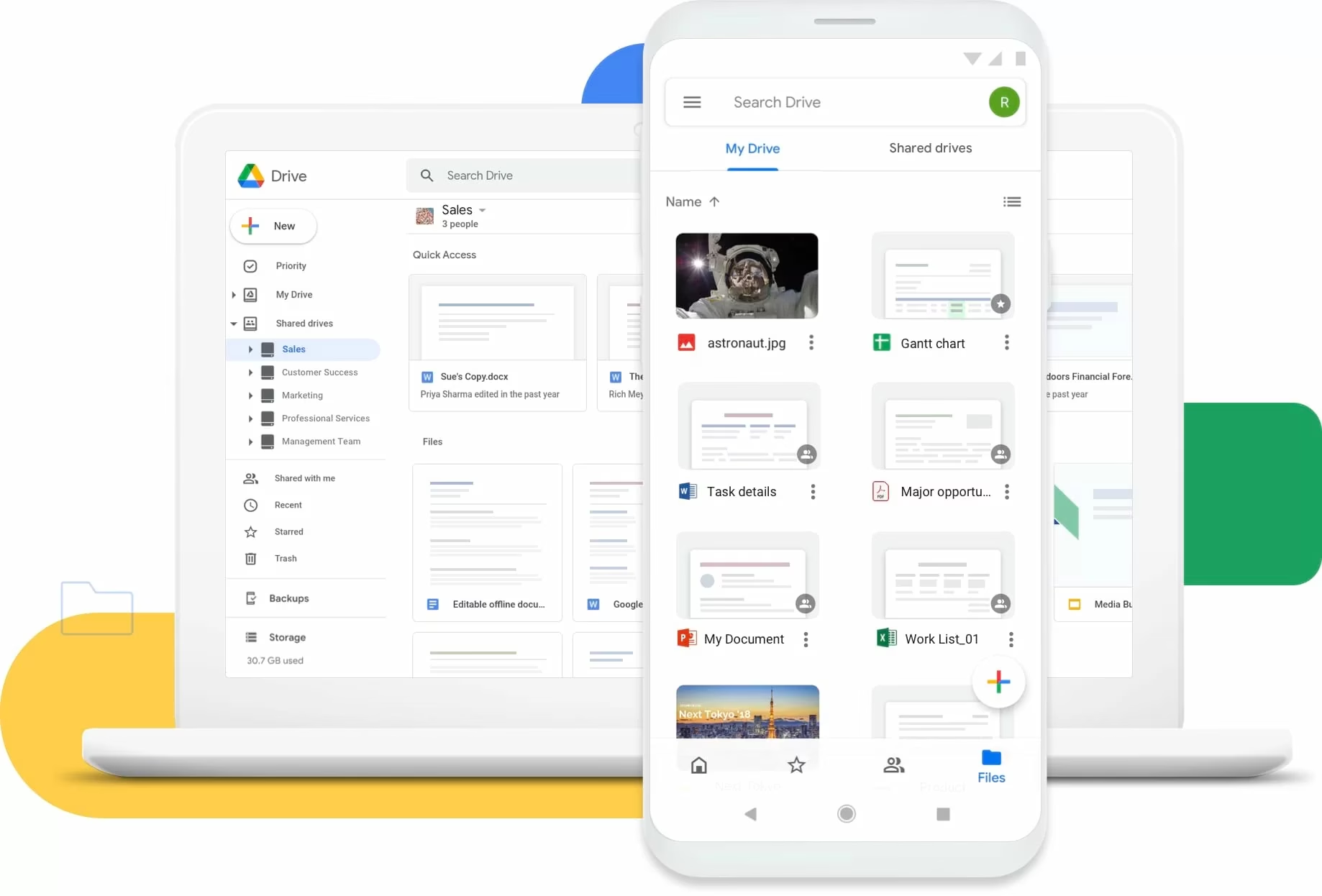
Managing company files in the cloud requires a balance between seamless access and robust security. Grant the wrong level of access, and an employee might accidentally delete a vital financial sheet; restrict access too tightly, and your team’s workflow grinds to a halt. To keep your digital assets safe, this simple guide breaks down Google Drive permissions explained step-by-step, followed by a direct comparison of Shared Drives vs. My Drive to help you choose the right environment for your business.
Part 1: Google Drive Permissions Explained Simply
Google Drive uses a role-based permission model. Understanding these roles ensures everyone has the exact level of access they need—and nothing more.
1. Google Drive Permissions Explained: The Core Sharing Roles
When sharing individual files or folders, you can assign three primary roles:
- Viewer: Can view the file, but cannot edit, comment, or share it with others. Ideal for final company policies or view-only reports.
- Commenter: Can view the document and leave comments or suggestions without altering the original text. Great for reviewing drafts and providing feedback.
- Editor: Can make changes, accept or reject suggestions, and share the file with others. Reserved for active collaborators on a project.
2. Advanced Link Sharing Options
When sharing via a link, Google gives you three access levels:
- Restricted: Only specific people added by email can open the link.
- Your Organization: Anyone logged into an email address with your domain (
@yourcompany.com) can access it. - Anyone with the Link: Public access. Warning: Avoid using this setting for sensitive internal business documents.
Pro Security Tip: For sensitive files, click the settings gear inside the sharing menu to uncheck “Editors can change permissions and share” and “Viewers and commenters can see the option to download, print, and copy.”
Part 2: Shared Drives vs. My Drive: What Businesses Should Use
A common trap for growing businesses is relying on My Drive for daily operations instead of migrating to Shared Drives. Understanding the fundamental difference between the two is crucial for long-term data security.
MY DRIVE (Individual Ownership)
User Creates File ➔ User Owns File ➔ User Leaves ➔ File At Risk

SHARED DRIVE (Company Ownership)
User Creates File ➔ Company Owns File ➔ User Leaves ➔ File Stays Safe
Key Differences at a Glance
| Feature | My Drive | Shared Drives |
| File Ownership | Belongs to the individual creator | Belongs to the organization |
| Offboarding Impact | Deleting a user account can delete their files | Files remain intact if an employee leaves |
| Permission Control | Managed on a file-by-file or folder basis | Managed globally at the drive/team level |
| Moving Files | Files can easily be moved or misplaced | Structured hierarchy prevents accidental moves |
| Best Used For | Personal drafts, private scratchpads | Departmental files, client projects, assets |
Why Businesses Must Use Shared Drives
Now that you have Google Drive permissions explained, the strategic choice becomes clear: Businesses should always default to Shared Drives for core operations.
- Protects Company IP: In a personal “My Drive,” if an employee creates a critical tracking sheet and later leaves the company, deleting their account risks deleting that file permanently. In a Shared Drive, the business owns the data from day one.
- Streamlines Onboarding: Instead of sharing twenty separate folders with a new hire, you simply add them to the relevant Shared Drive (e.g., “Marketing Team”), and they automatically inherit access to everything they need.
- Prevents File Loss: Shared Drives feature specialized permissions—such as Content Manager (can add and edit files, but cannot delete them) and Contributor (can add files, but cannot move or delete existing ones)—preventing accidental mass-deletions.
Summary Checklist for Business Admins
- Use My Drive exclusively for personal drafts and temporary working documents.
- Move all team, client, and department files into dedicated Shared Drives.
- Grant team members Content Manager or Contributor roles in Shared Drives rather than full Manager access.
- Review external sharing links regularly to ensure sensitive data remains restricted to your domain.
- Organize your Google Drive using these best practices for business
- .